Generating professional invoices in Laravel with dompdf — and a debug trick that saved me
When I started adding invoice generation to my SaaS, I thought it would take an afternoon. It took considerably longer than that.
PDF generation in PHP has always been a bit of a pain. But after working through the quirks of dompdf inside a Laravel project, I’ve settled on a setup that works reliably — and along the way I built a small debug tool that I now use on every single PDF template I write.
This post covers how I set it up, what tripped me up, and the Blade component that makes positioning elements in dompdf much less frustrating.
Why dompdf
There are a few options for PDF generation in Laravel: dompdf, TCPDF, mPDF, and more recently headless Chrome via tools like Browsershot. I chose dompdf because:
- It installs as a simple Composer package (
barryvdh/laravel-dompdf) - It renders from standard HTML and CSS — no proprietary markup
- It handles French invoice requirements well enough (UTF-8, euro sign, accented characters)
- It’s fast enough for on-demand generation in a web request
For a SaaS generating invoices one at a time on user action, it’s the right balance of simplicity and output quality.
Basic setup
composer require barryvdh/laravel-dompdf
In your controller:
use Barryvdh\DomPDF\Facade\Pdf;

public function download(Invoice $invoice)
{
    $pdf = Pdf::loadView('pdf.invoice', [
        'invoice' => $invoice,
    ]);

    return $pdf->download("facture-{$invoice->number}.pdf");
}
The Blade template could live at resources/views/pdf/invoice.blade.php and is plain HTML — no special syntax required.
Structure of the invoice template
The key thing to understand about dompdf is that it does not fully support CSS. Flexbox and Grid are not available. You are essentially writing HTML like it’s 2005 — tables for layout, absolute positioning for elements that need to be placed precisely, and inline styles everywhere.
Here is the basic shell I use:
<!DOCTYPE html>
<html lang="fr">
<head>
    <meta charset="UTF-8">
    <style>
        * {
            margin: 0;
            padding: 0;
            box-sizing: border-box;
            font-family: DejaVu Sans, sans-serif;
        }

        body {
            font-size: 11px;
            color: #1a1a2e;
        }

        .page {
            position: relative;
            width: 794px;
            padding: 40px 40px 40px 60px;
        }
    </style>
</head>
<body>
    <div class="page">

        <x-pdf-ruler />

        {{-- Header: company info + invoice number --}}
        {{-- Client block --}}
        {{-- Line items table --}}
        {{-- Totals --}}
        {{-- Legal footer --}}

    </div>
</body>
</html>
A few things worth noting:
Use DejaVu Sans as your font. It ships with dompdf and handles accented French characters, the euro sign, and most special characters without needing to embed a custom font. If you do want a custom font, you can embed it, but it adds complexity and file size.
Set an explicit width on your root element. I use 794px, which is A4 at 96 dpi. Without this, dompdf can behave unpredictably with percentage widths.
Use position: relative on the page wrapper. This is required for any absolutely-positioned children — including the debug ruler.
The part nobody talks about: pixel positioning
Once you get past basic layout, the real frustration starts. You need to place elements at specific positions — a logo in the top right, a “PAID” stamp overlaid diagonally, a footer pinned to the bottom of the page. And dompdf renders things slightly differently from a browser.
The standard approach is to render the PDF, look at it, guess that something is about 120px from the top, update the value, render again, check again. This loop can take 20–30 iterations for a complex template.
So I built a debug ruler.
The debug ruler Blade component
The idea is simple: a narrow yellow strip pinned to the left edge of the page, showing pixel values every 10px. You drop it into your template while you’re working, use it to read exact positions, then it disappears automatically in production.
The component class — app/View/Components/PdfRuler.php:
<?php

namespace App\View\Components;

use Illuminate\View\Component;

class PdfRuler extends Component
{
    public function __construct(
        public int    $max   = 297,
        public int    $step  = 10,
        public int    $width = 30,
        public string $side  = 'left',
    ) {}

    public function render()
    {
        return view('components.pdf-ruler');
    }

    public function shouldRender(): bool
    {
        return config('app.debug', false);
    }
}
The Blade template — resources/views/components/pdf-ruler.blade.php:
<div style="
    position: absolute;
    {{ $side === 'right' ? 'right: 0;' : 'left: 0;' }}
    top: 0;
    bottom: 0;
    width: {{ $width }}px;
    background: #ffeb3b;
    font-size: 7px;
    font-family: monospace;
    color: #000;
    line-height: 1;
    padding: 0 2px;
    z-index: 9999;
    box-sizing: border-box;
">
    @for ($i = 0; $i <= $max; $i += $step)
        <div style="
            {{ $i === 0 ? '' : "margin-top: {$step}px;" }}
            border-top: 1px solid rgba(0,0,0,0.2);
            padding-top: 1px;
        ">{{ $i }}</div>
    @endfor
</div>
Usage in your PDF template:
<div class="page">

    {{-- Visible only when APP_DEBUG=true --}}
    <x-pdf-ruler />

    {{-- Or on the right side --}}
    <x-pdf-ruler side="right" />

    {{-- Both sides simultaneously --}}
    <x-pdf-ruler side="left" />
    <x-pdf-ruler side="right" />

    {{-- Finer resolution --}}
    <x-pdf-ruler :step="5" />

    ... your invoice content ...

</div>
The shouldRender() method is the important part. When APP_DEBUG=false — which it always is in production — Laravel skips the component entirely. No HTML is emitted, no processing happens. There is nothing to accidentally leave in a client-facing PDF.
Typical A4 dimensions to keep in mind
When you’re using the ruler, these reference points are useful:
| Reference | Pixel value (96 dpi) |
|---|---|
| A4 page height | 1123 px |
| A4 page width | 794 px |
| Typical top margin | 40 px |
| Typical bottom margin | 40 px |
| Usable height | ~1043 px |
I set :max="1123" when I need to check positions all the way to the bottom of the page.
A few other dompdf lessons learned
Tables are your friend. As much as it feels like a step backwards, <table> is the most reliable layout tool in dompdf. Line items, the totals block, the header with company info on the left and invoice number on the right — all tables.
Inline styles are more reliable than stylesheets. Dompdf’s CSS cascade support has quirks. When something isn’t rendering correctly, moving the style inline often fixes it immediately.
Images should be base64 encoded. If you’re embedding a logo, convert it to a base64 data URI. Dompdf can struggle with file path resolution, especially in Docker environments.
$logo = base64_encode(file_get_contents(public_path('images/logo.png')));
$logoSrc = 'data:image/png;base64,' . $logo;
Page breaks need explicit CSS. If your invoice can span multiple pages, add page-break-inside: avoid to your line item rows so a row never splits across pages.
tr { page-break-inside: avoid; }
The result
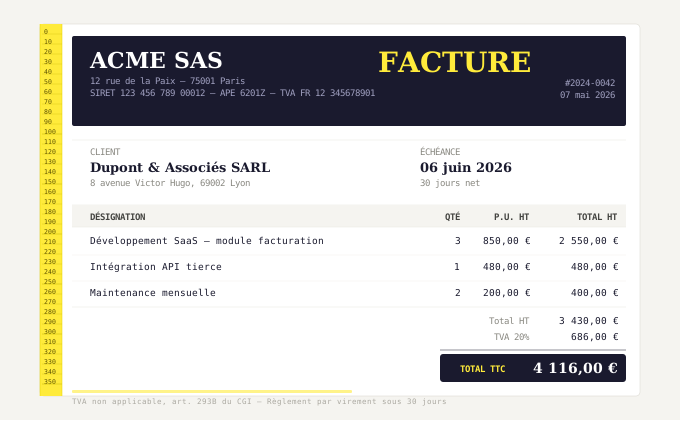
The debug ruler sounds like a tiny thing, but it genuinely helped in my work on PDF templates. Instead of a tedious render-guess-adjust loop, I open the PDF once, read the values I need, and write the correct numbers first time.
The component approach also means it’s reusable across every PDF template in the project — quotes, delivery notes, receipts — with a single line and zero risk of it appearing in production.
If you’re building invoice generation into your Laravel SaaS and want to save a few hours of frustration, I hope this is useful. Feel free to copy the component code — it’s the kind of thing that should just exist in every Laravel dompdf project.
I build SaaS tools and write about the technical decisions behind them. If you found this useful, the LinkedIn version of this post is a bit shorter and might be worth sharing with your network.